
How to start with Azure AD group-based licensing
To start with the group-based licensing, the administrator creates a group or uses an existing group from their on-premises Active Directory or a security group in Azure. With groups in Azure AD, an administrator can choose either create a dynamic group or a static group.
In a static group, the administrators must maintain the members through manual assignment of users, which can be done through Active Directory or PowerShell.
In a dynamic group, users can be automatically assigned membership based on specific rules that IT makes with the rule builder in the Azure portal. The tool makes it easy to form rules with expressions. The following are examples of expressions used to build dynamic groups.
A group membership based on department number information included in the user properties would look like this:
user.department -in ["50001","50002","50003","50005","50006","50007","50008","50016","50020","50024","50038","50039","51100"]
or
user.department -eq "Sales"
or
user.department –eq "Marketing" –and user.country –eq "US"
A group membership based on the display name that matches an expression would look like this:
user.displayName -match "Da.*"
A group membership for all users within the organization would look like this:
user.objectId -ne null
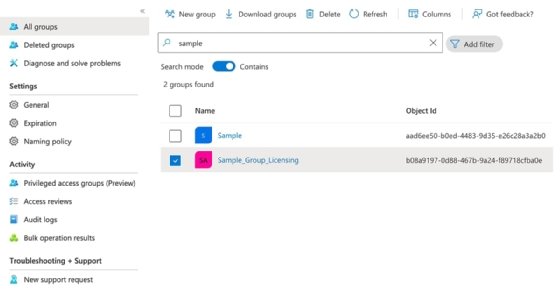
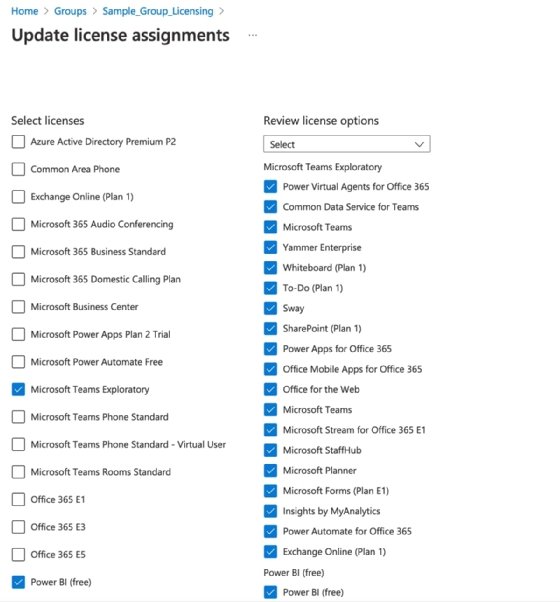
After selecting the group, the administrator can assign available licenses. After selecting a license, the administrator can make additional modifications to add or remove features or remove some of the services.
Administrators can also use the Microsoft Graph API and PowerShell to assign users to groups that get a specific set of licenses. The Graph Explorer is available to test the commands.
To assign a set of licenses to a security group, the following post-based command can be sent via Microsoft Graph API. The command requires the group unique identifier and the SKU IDs from Microsoft:
POST https://graph.microsoft.com/v1.0/groups/1ad75eeb-7e5a-4367-a493-9214d90d54d0/assignLicense
 Content-type: application/json
 {
  "addLicenses": [
   {
    "disabledPlans": [ "11b0131d-43c8-4bbb-b2c8-e80f9a50834a" ],
    "skuId": "c7df2760-2c81-4ef7-b578-5b5392b571df"
   },
   {
    "disabledPlans": [ "a571ebcc-fqe0-4ca2-8c8c-7a284fd6c235" ],
    "skuId": "sb05e124f-c7cc-45a0-a6aa-8cf78c946968"
   }
  ],
  "removeLicenses": []
 }
To display the list of groups available for licensing, run the following PowerShell command:
Get-MsolGroup -All | Where {$_.Licenses} | Select `
   ObjectId, `
   DisplayName, `
   @{Name="Licenses";Expression={$_.Licenses | Select -ExpandProperty SkuPartNumber}}